PROMOTIONS · MERCHANT GUIDE
Promotion setup guide
Set up your promotion display in MeAero, then create the matching automatic discount in Shopify. Follow these five steps to keep them aligned.
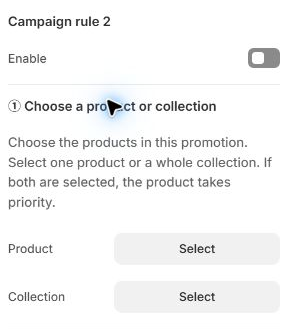
1Choose a product or collection
Open Theme settings → Promotion editor. Choose one of the eight campaigns and turn it on.
- For one product, use the native Product picker.
- For a collection, leave Product empty and choose a Collection.
- If both are selected, the product takes priority. If neither is selected, the campaign does not apply.
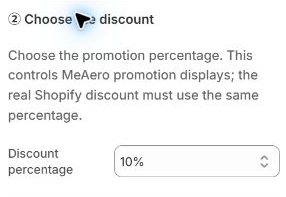
2Choose the percentage
Select one of the six supported values:
Use exactly the same percentage in Shopify. Changing this setting controls the MeAero display; it does not create or update a Shopify discount.
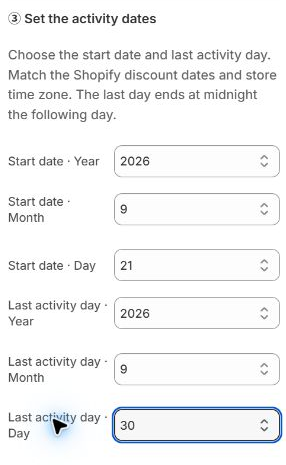
3Set the campaign dates
Use the year, month and day fields to choose the start date and last activity day. This version uses whole-day campaigns in the store timezone; it does not offer arbitrary hours, minutes or seconds.
| Where | Start | End |
|---|---|---|
| MeAero | Sep 21, 2026 | Last activity day: Sep 30, 2026 |
| Shopify | Sep 21, 2026 00:00 | Oct 1, 2026 00:00 |
Match MeAero’s store timezone to your Shopify store timezone, not your customer’s device timezone. Replace the example dates with your own schedule.
4Create the real Shopify discount
Click Go to Shopify discounts in the editor to open the current store’s discount admin. Keep your MeAero editor tab open so you can return afterwards.
Create an automatic percentage discount on products with the same target, percentage and schedule. It must apply to all customers, with no minimum purchase amount or quantity and no other purchase conditions. For this simple mapping, leave discount combinations off.
Read the Shopify discount setup guide →The help guide and the Shopify admin are separate destinations. Reading this guide does not create or save a discount.
5Return and confirm
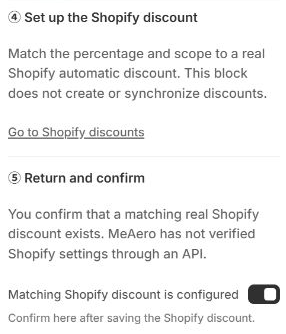
After saving the discount in Shopify, return to MeAero and turn on Matching Shopify discount is configured. Save your theme settings.
This is your manual confirmation, not an API verification by MeAero. If the target, percentage or dates change, check both configurations again before confirming.
Product cards show the promotion price state. Product pages also show the countdown. Cart, checkout, orders and emails always use Shopify’s actual results.